 Vox
Before you start
You will need:
- An invitation to your organisation’s Vox channel.
- The work email address used on that invitation.
- A passkey on this device, or an authenticator app already registered for Vox.
- Your case decryption passphrase from key set-up. This is separate from sign-in.
- A current version of Chrome, Edge, Firefox, or Safari.
Open the portal on your organisation’s application host, for example https://app.getvox.co.uk/staff/login. The public site at getvox.co.uk does not host live cases.
1. Sign in
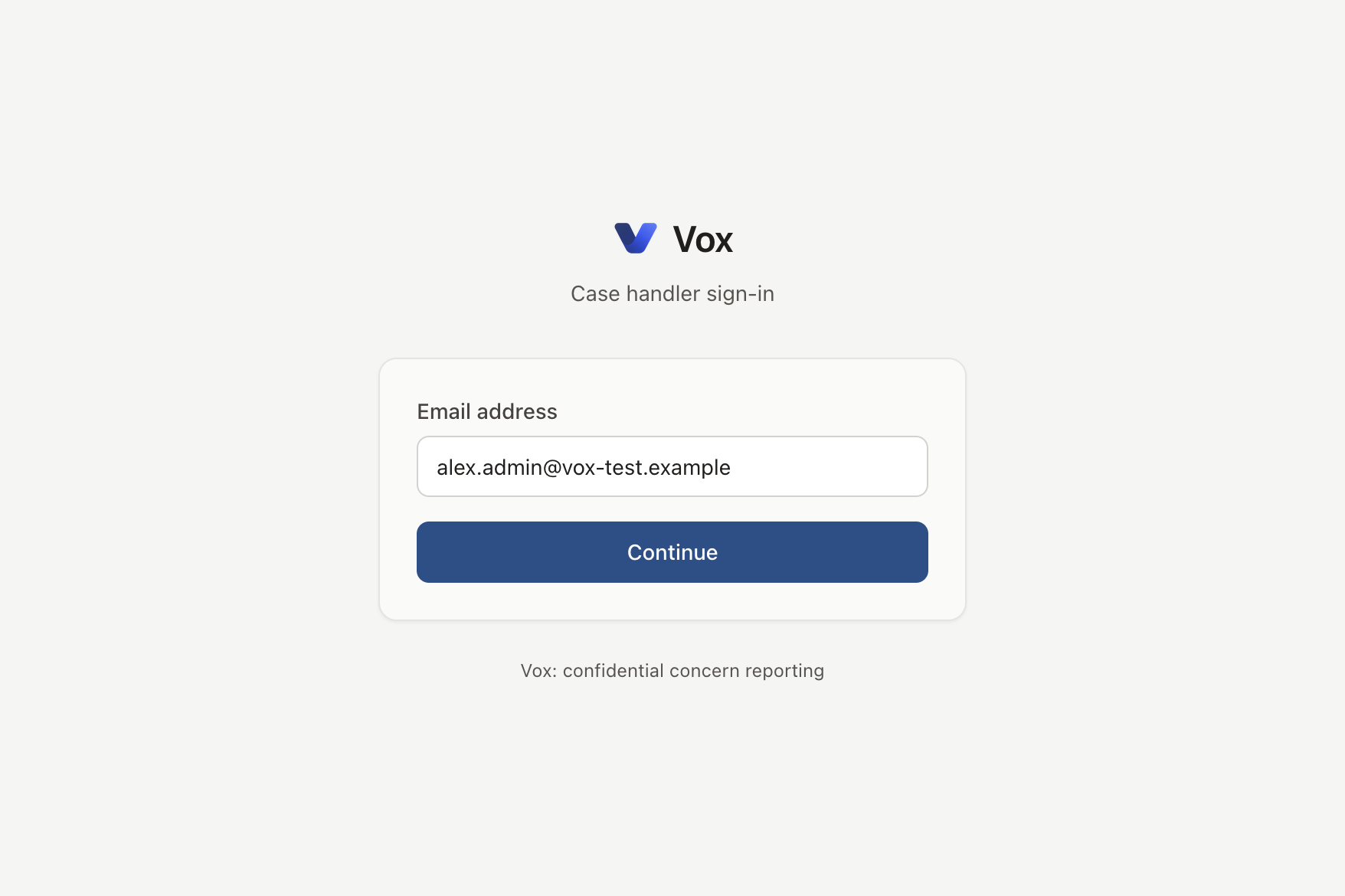
Email address
On the sign-in page, enter the email address from your invitation, then select Continue.
If your administrator has enabled Microsoft sign-in, you may also see Sign in with Microsoft. That option still requires an invited handler account.
Passkey
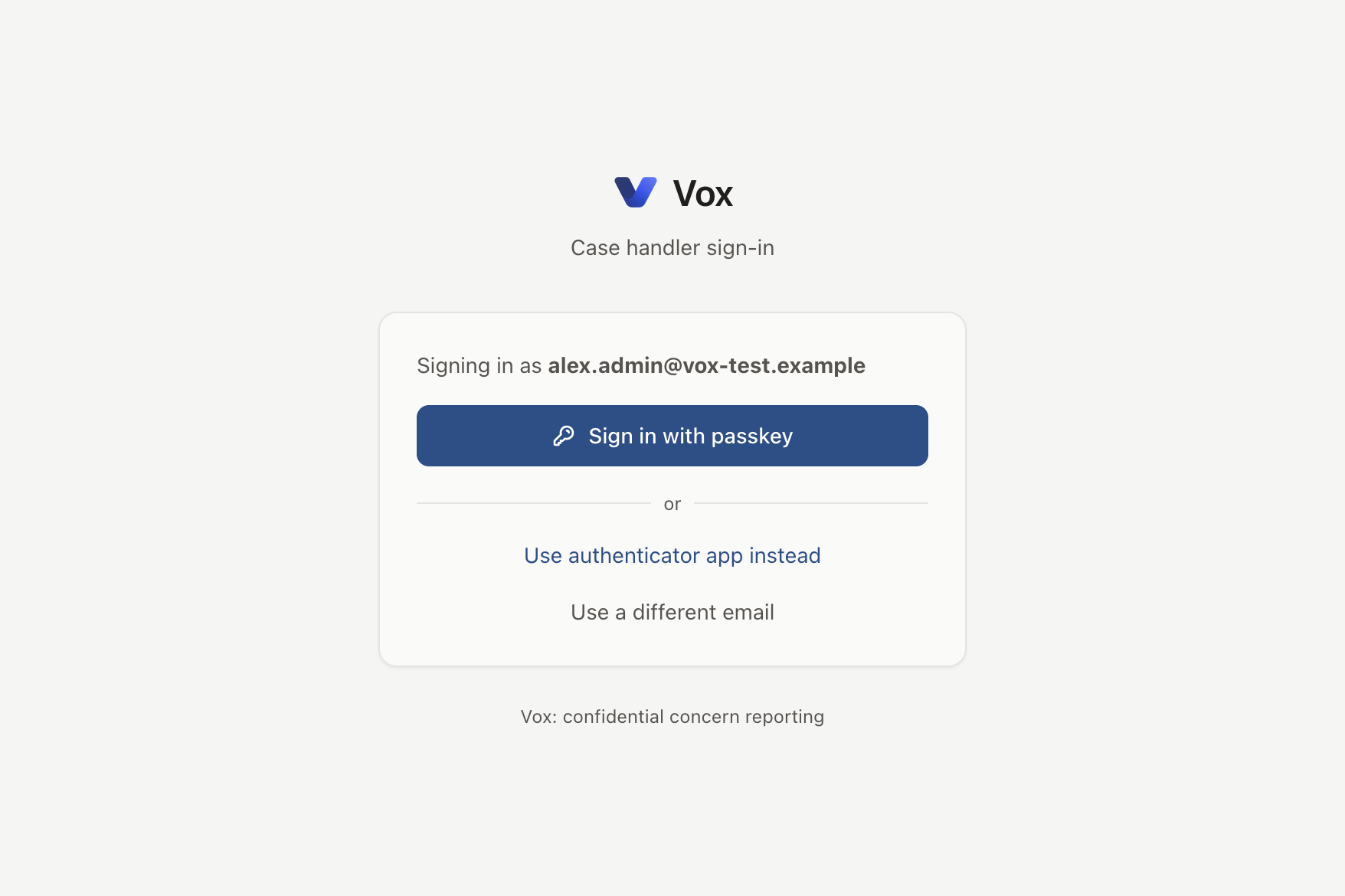
Where available, passkey sign-in is the preferred method. The page confirms which email address you are using.
- Select Sign in with passkey.
- Complete the device prompt (for example Touch ID, Windows Hello, a security key, or browser confirmation).
- On success you reach the inbox if key set-up is complete, or key set-up if this is your first session.
- Use authenticator app instead
- Opens the six-digit code form when a passkey is not available on this device.
- Use a different email
- Returns to the email step.
Authenticator app
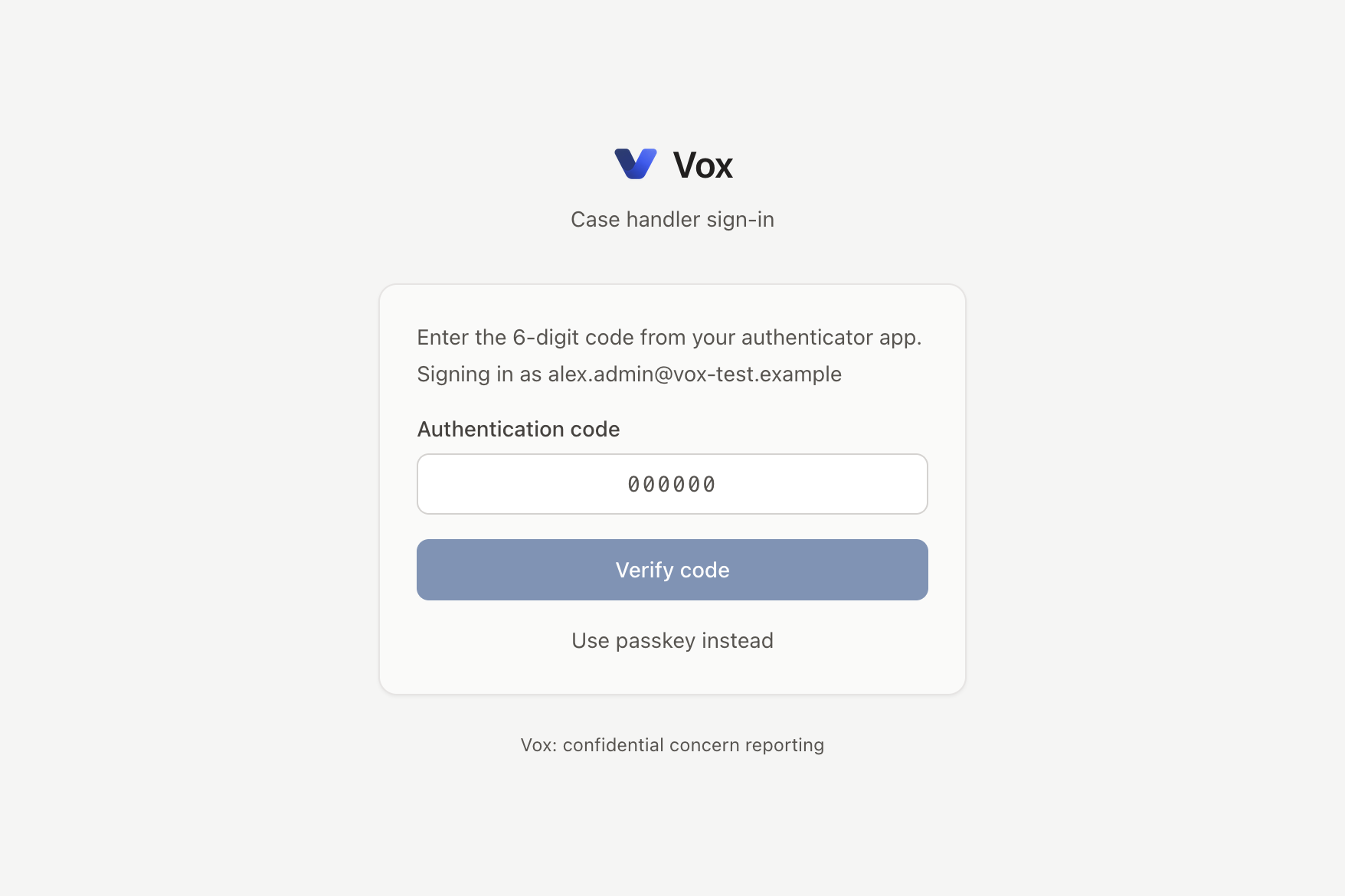
Use this when a passkey is unavailable, or after selecting the authenticator option.
- Open your authenticator app and locate the Vox entry.
- Enter the current six-digit code in Authentication code.
- Select Verify code.
An incorrect code clears the field so you can try again. Repeated failures lock the account for 30 minutes.
2. Unlock case content
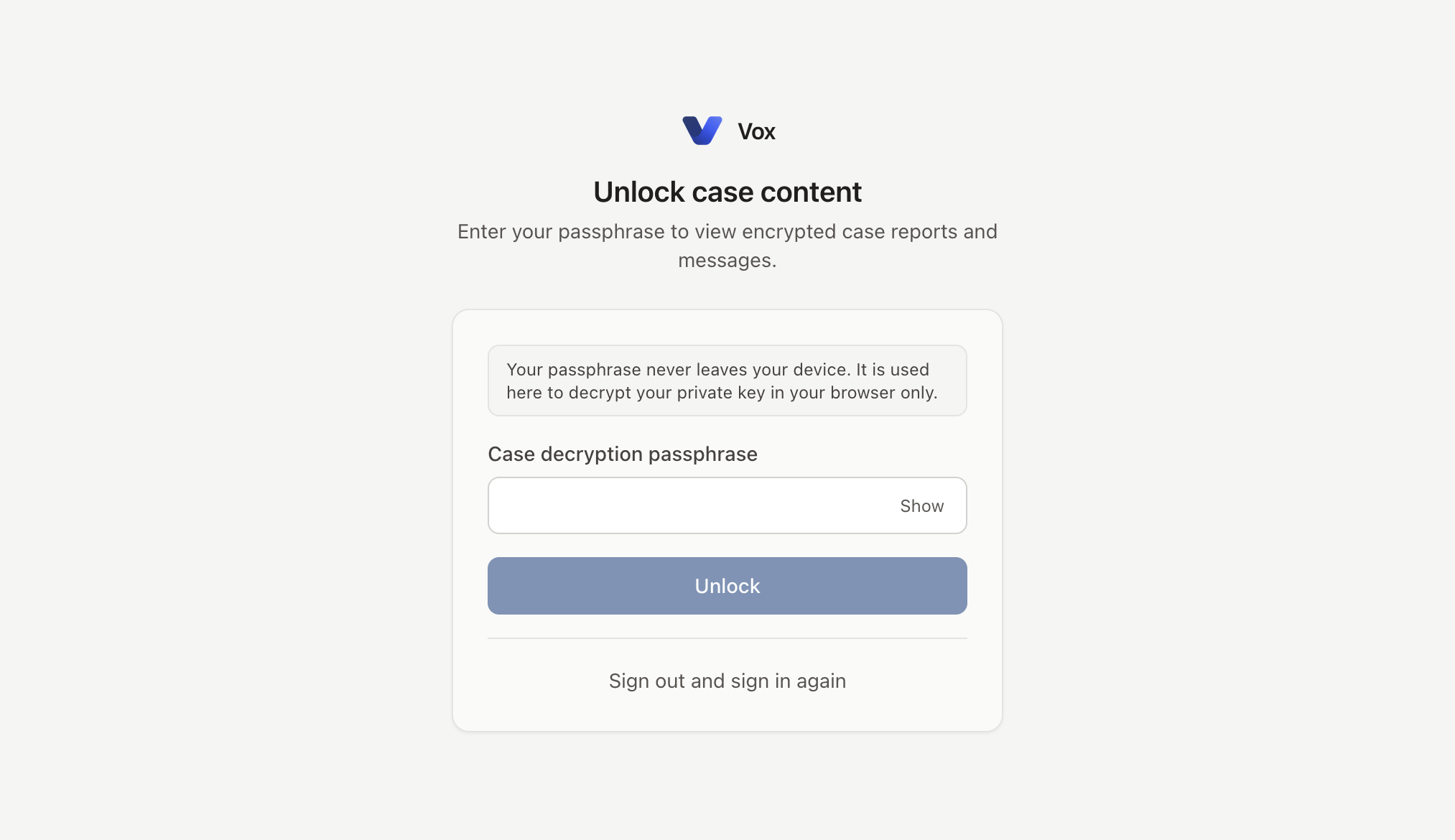
After a refresh, a new tab, or the first time you open a case in a session, Vox asks for your case decryption passphrase. Sign-in alone does not decrypt report content.
- Enter the passphrase in Case decryption passphrase.
- Optionally select Show to check what you typed, then Hide.
- Select Unlock.
You are returned to the page you requested, usually a case or the inbox. Sign out and sign in again ends the session if you are on the wrong account.
3. Navigation
After sign-in, the sidebar is shared across the portal (except on pages such as login and unlock).
- Cases → Inbox
- Your case list and summary counts.
- Reporting → Statistics
- Aggregated figures for board reporting, with small counts suppressed.
- Reporting → QR poster
- A printable A4 poster with your reporting URL and QR code.
- Settings → Retention
- How long closed cases are retained (administrators).
- Settings → Microsoft sign-in
- Optional Microsoft Entra sign-in (administrators).
- Settings → Billing
- Subscription and billing portal access.
- Help → Handler guide
- This guide, opened in a new tab.
- Sign out
- Clears the private key from memory and ends the server session.
On smaller screens, the sidebar opens from Menu in the top bar.
4. Inbox
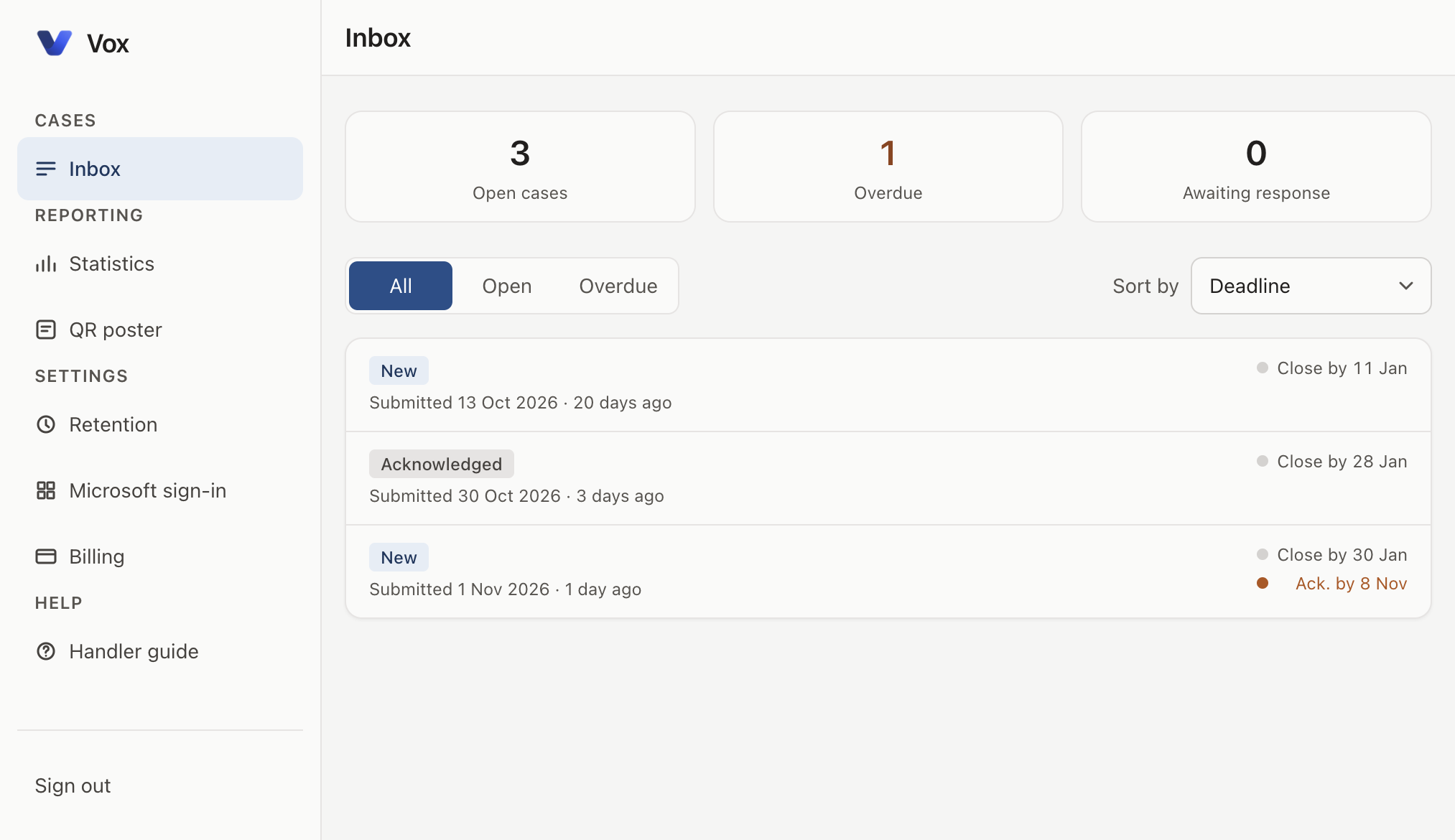
The inbox is the home screen after sign-in. Case content remains encrypted here; you see metadata only.
Summary
- Open cases
- Cases that are not closed.
- Overdue
- Cases past acknowledge or close deadlines.
- Awaiting response
- Open cases with unread messages from the reporter.
Filters and sorting
Filter by All, Open, or Overdue. Sort by Deadline (default), Date submitted, or Status.
Case rows
Select a row to open the case. You may be asked to unlock first. A row can show:
- Status: New, Acknowledged, In review, Investigating, Awaiting reporter, or Closed.
- New message when the reporter has written and you have not yet opened the case.
- Legal hold when automatic deletion is blocked.
- Submission date (day only) and how long ago it was submitted.
- Close-by deadline, with urgency indicated by colour. New cases also show acknowledge-by.
5. Case workspace
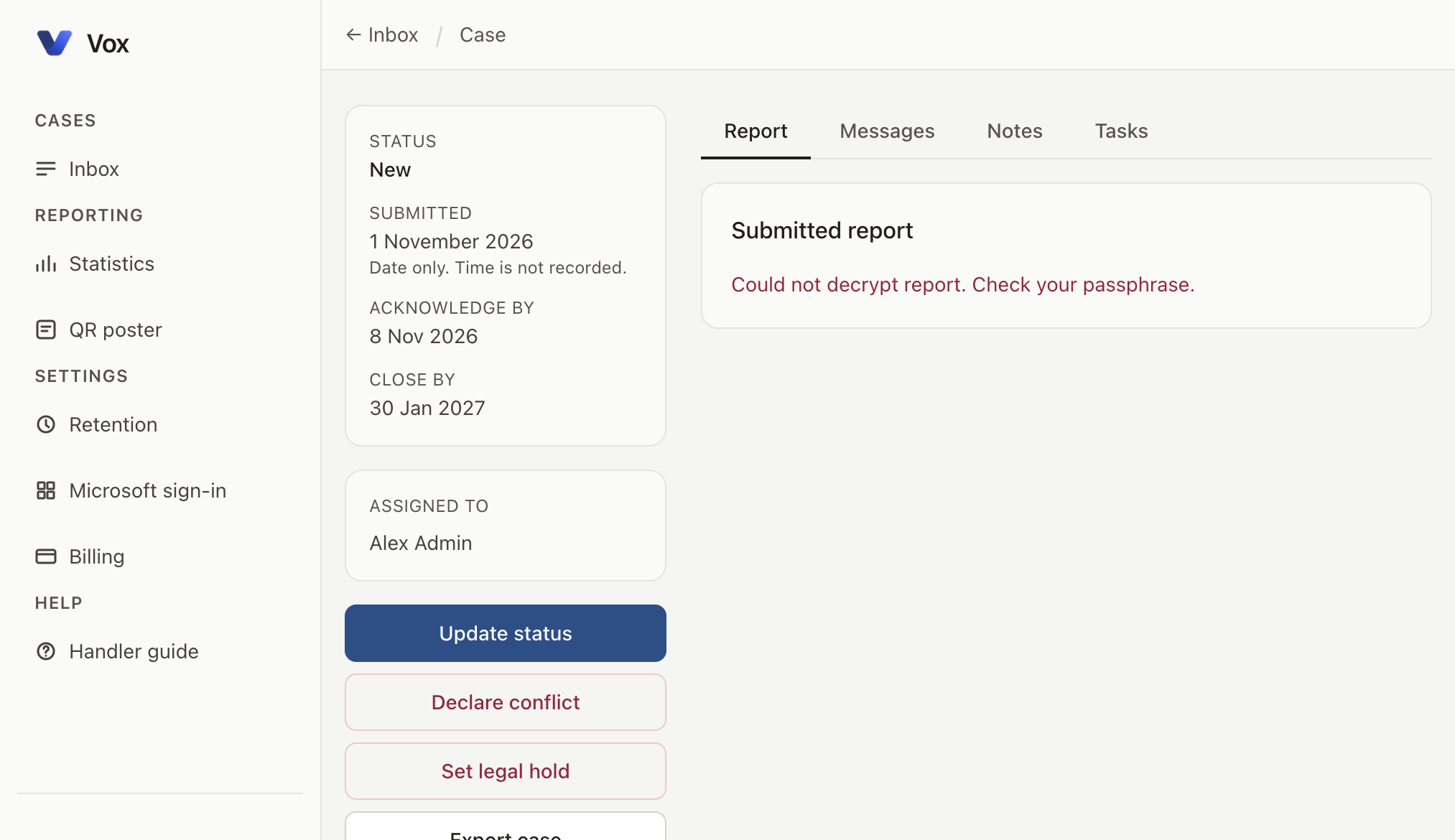
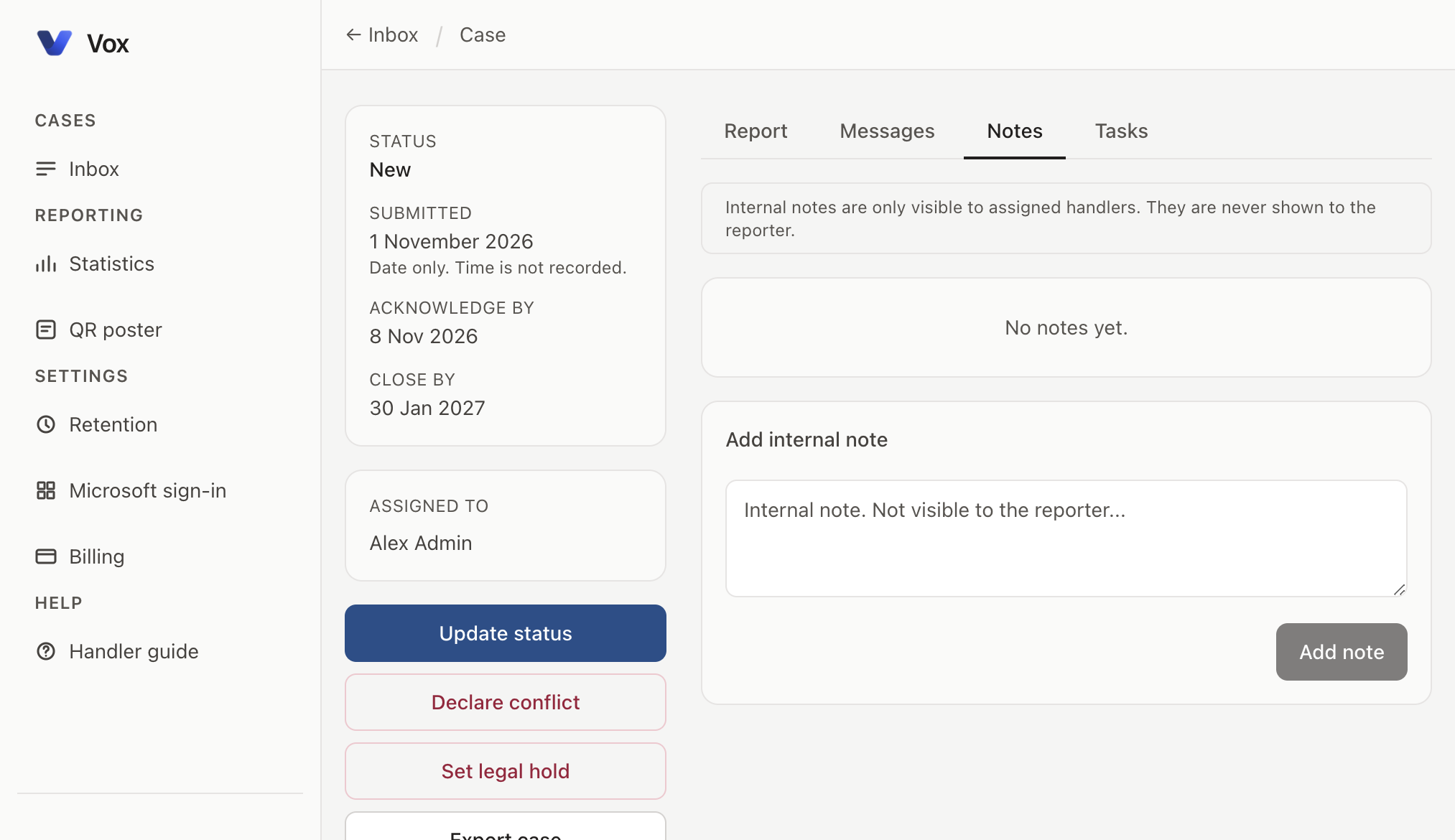
Each case has a metadata column on the left and a tabbed workspace on the right.
Case details and actions
- Status
- Current stage in the case workflow.
- Submitted
- Date only. Time of day is not shown.
- Acknowledge by / Close by
- Deadlines based on your organisation’s settings.
- Outcome
- Shown after a case is closed with an outcome selected.
- Assigned to
- Handlers who can decrypt this case.
- Update status
- Moves the case to an allowed next status.
- Declare conflict
- Removes you from the case after confirmation.
- Set legal hold
- Prevents automatic deletion. Shown when a hold is not already active.
- Export case
- Opens an export of records you are permitted to download.
Tabs
- Report
- The decrypted submission.
- Messages
- Encrypted correspondence with the reporter, including reply templates.
- Notes
- Internal notes visible only to assigned handlers.
- Tasks
- Reserved for a future task list.
6. Status and outcomes
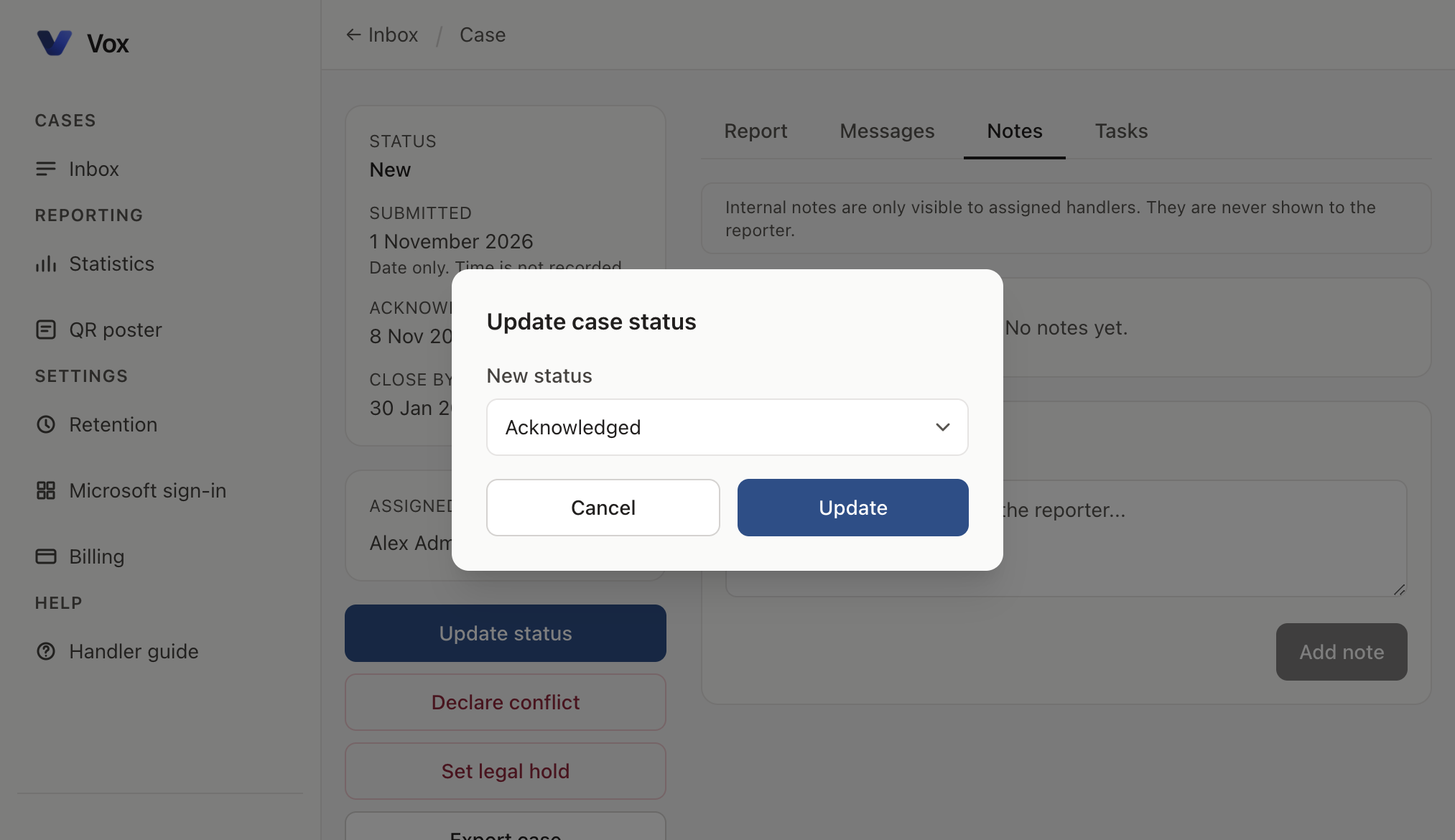
Select Update status. Only permitted next statuses are listed. A typical path is:
- New to Acknowledged
- Acknowledged to In review
- In review to Investigating, Awaiting reporter, or Closed
- Investigating to Awaiting reporter or Closed
- Awaiting reporter to In review or Closed
Closed cases have no further transitions. When you select Closed, you must choose an outcome before you can update:
- Substantiated: concern upheld
- Partly substantiated
- Not substantiated
- No further action required
- Referred elsewhere
7. Messages
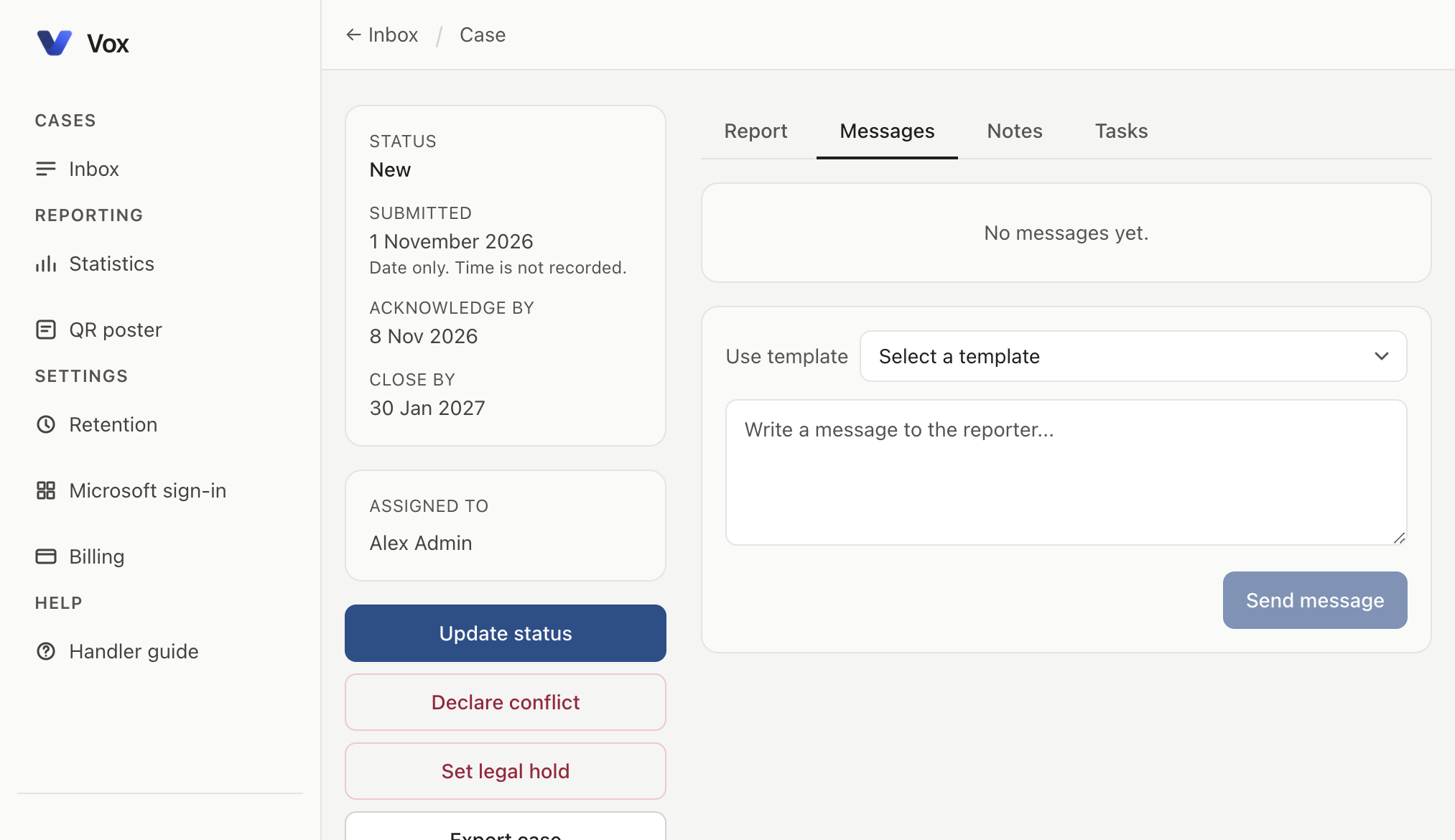
Open the Messages tab to read the thread and reply. Replies are encrypted to the reporter’s case key and to assigned handlers.
- Optionally choose Use template to insert a standard reply.
- Edit the text as needed.
- Select Send message.
- Acknowledge receipt
- Confirms the report was received and that the case key can be used for updates.
- Ask for more information
- Requests further detail without requiring a name.
- Close the case
- Informs the reporter that the case is closed, and that a new report can be submitted if needed.
8. Internal notes
Notes are visible only to assigned handlers. They are never shown to the reporter.
- Open Notes.
- Enter text under Add internal note.
- Select Add note.
- To remove a note, select Delete and confirm.
9. Conflict, legal hold, and export
Declare conflict
Use this when you should not handle the case, for example if you are named in it.
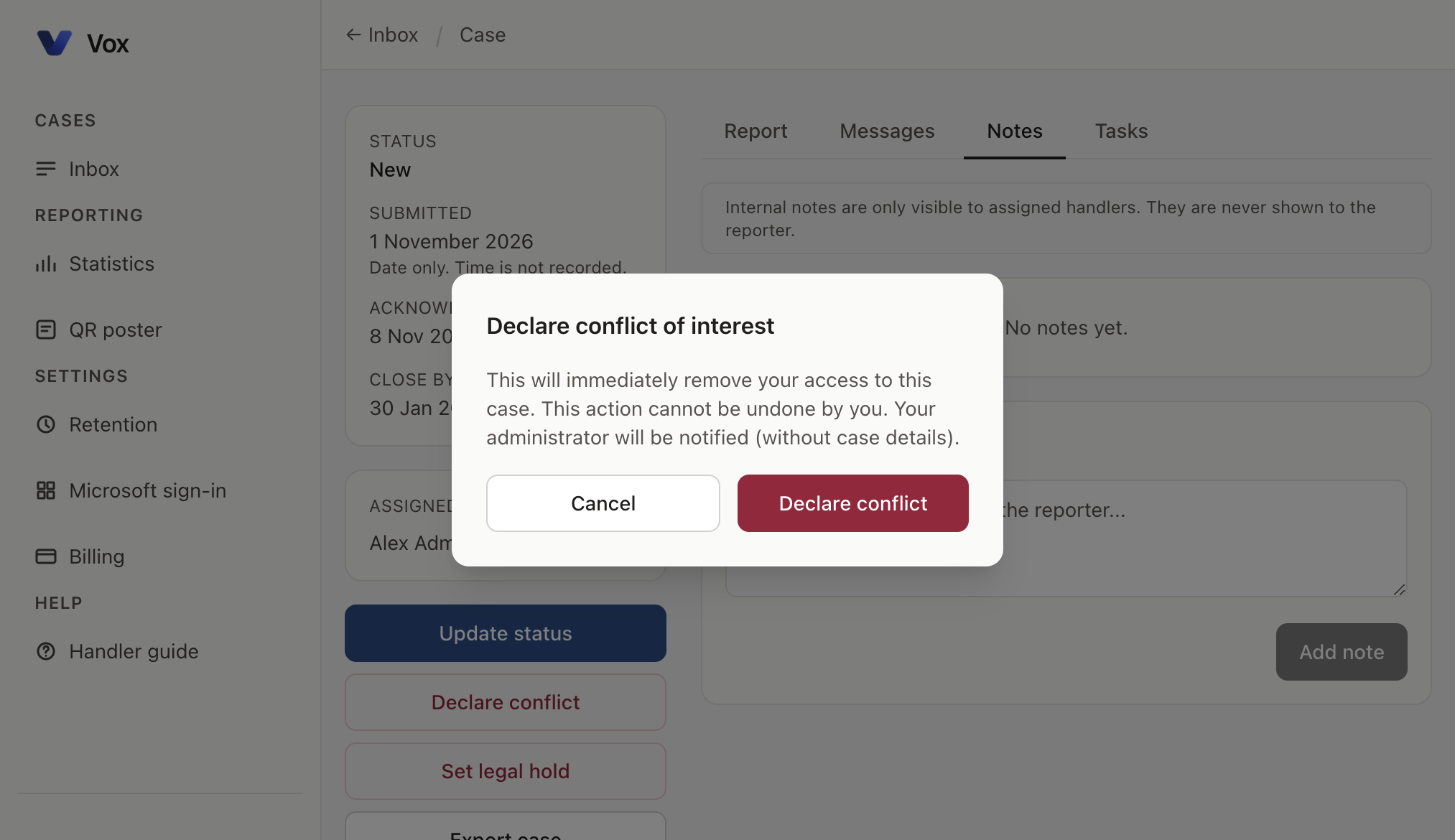
- Select Declare conflict.
- Read the confirmation. Access is removed immediately and you cannot reverse it yourself.
- Confirm with Declare conflict, or select Cancel.
This is separate from handler exclusion at submission, which the reporter applies before a report is sent.
Legal hold
Set legal hold marks the case so retention processes will not delete it. Use this when policy or legal requirements require preservation.
Export
Export case opens an export of records you are allowed to download. If the session has expired, sign in, unlock, open the case, and try again.
10. Statistics
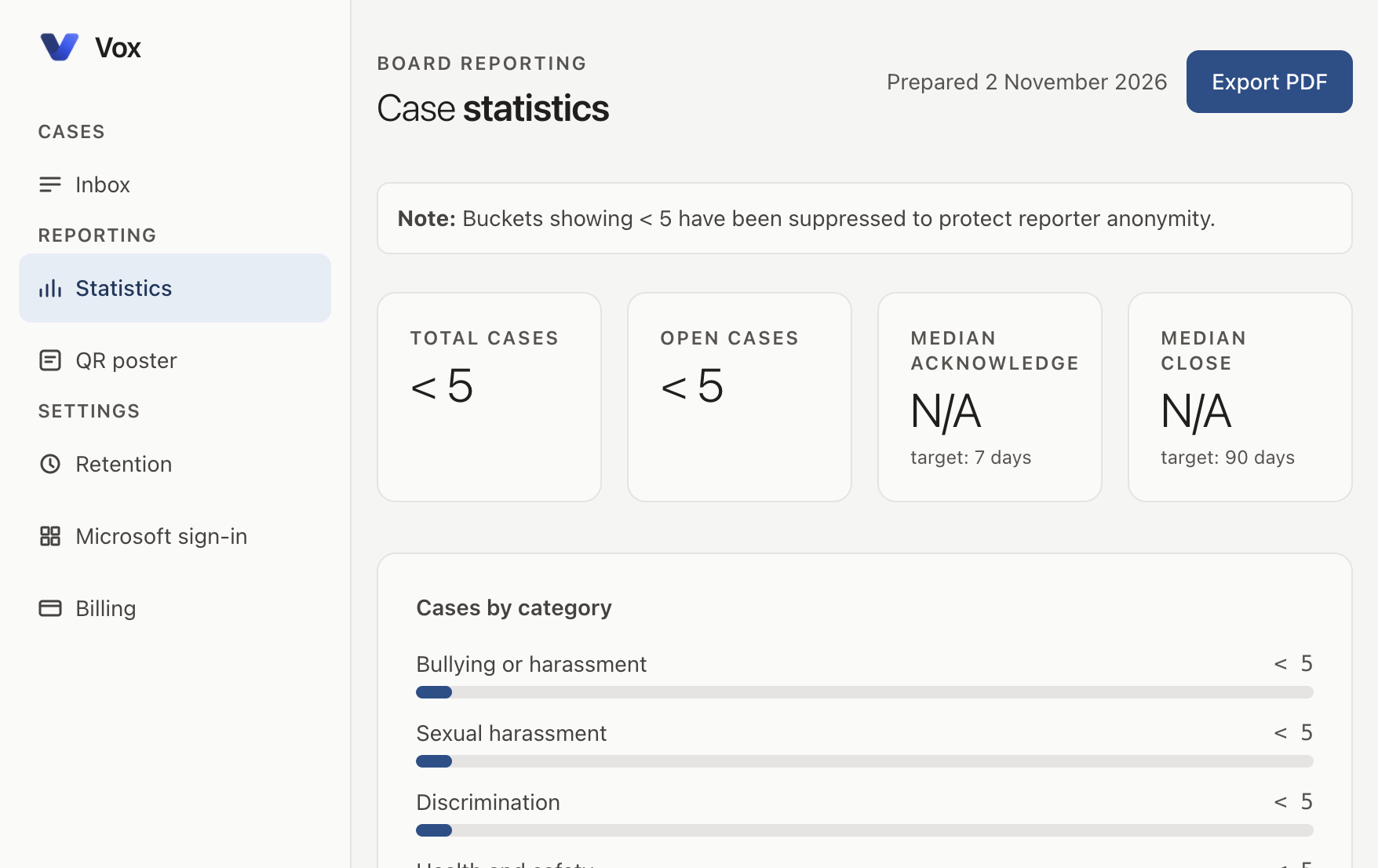
Open Statistics under Reporting for organisation-level totals suitable for board packs.
- Total cases, open cases, and median days to acknowledge and close.
- Breakdowns by category, status, and month.
- Counts below five are shown as < 5 to reduce the risk of identifying individuals.
- Export PDF prepares a printable summary for the date shown.
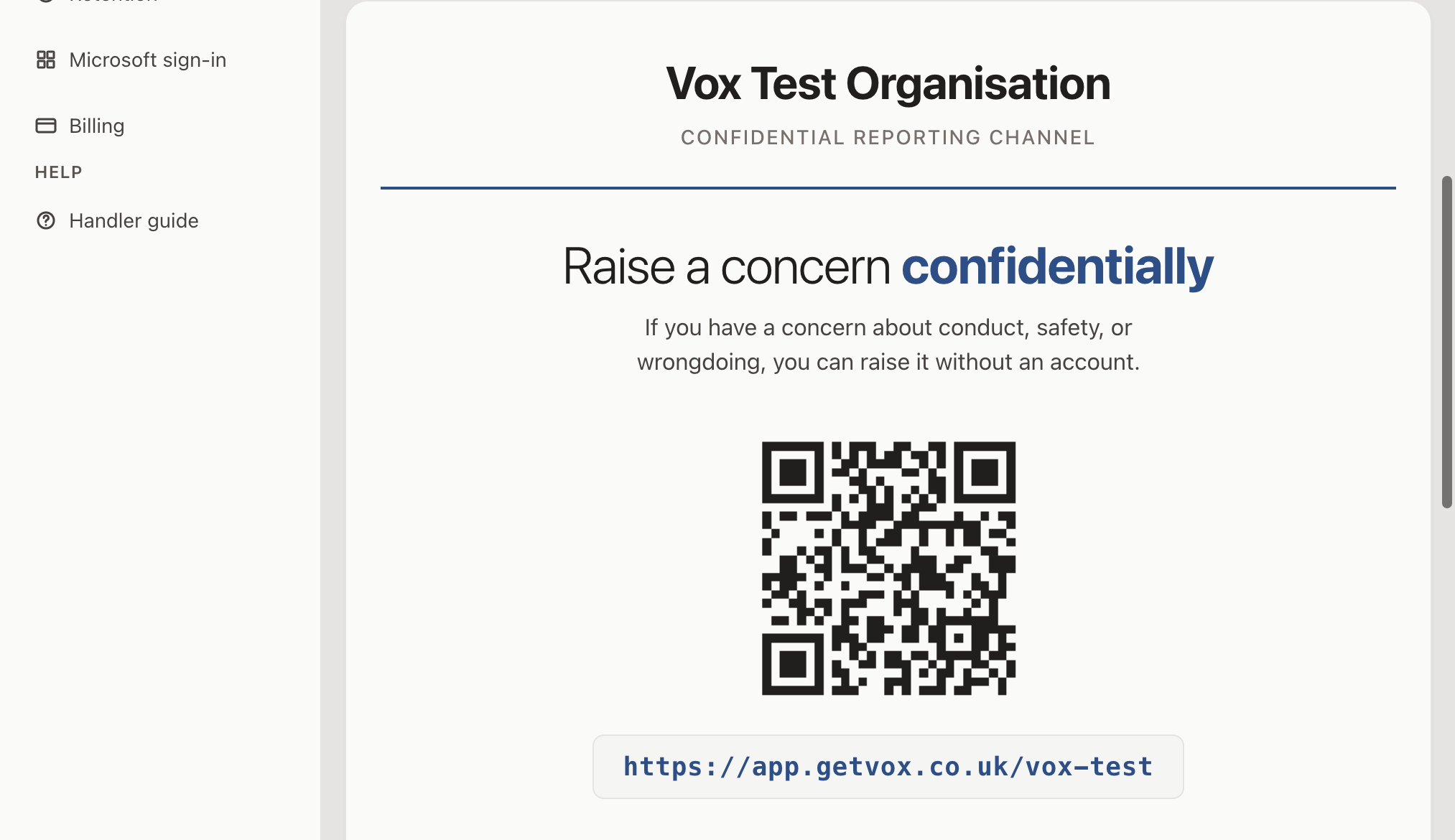
11. QR poster
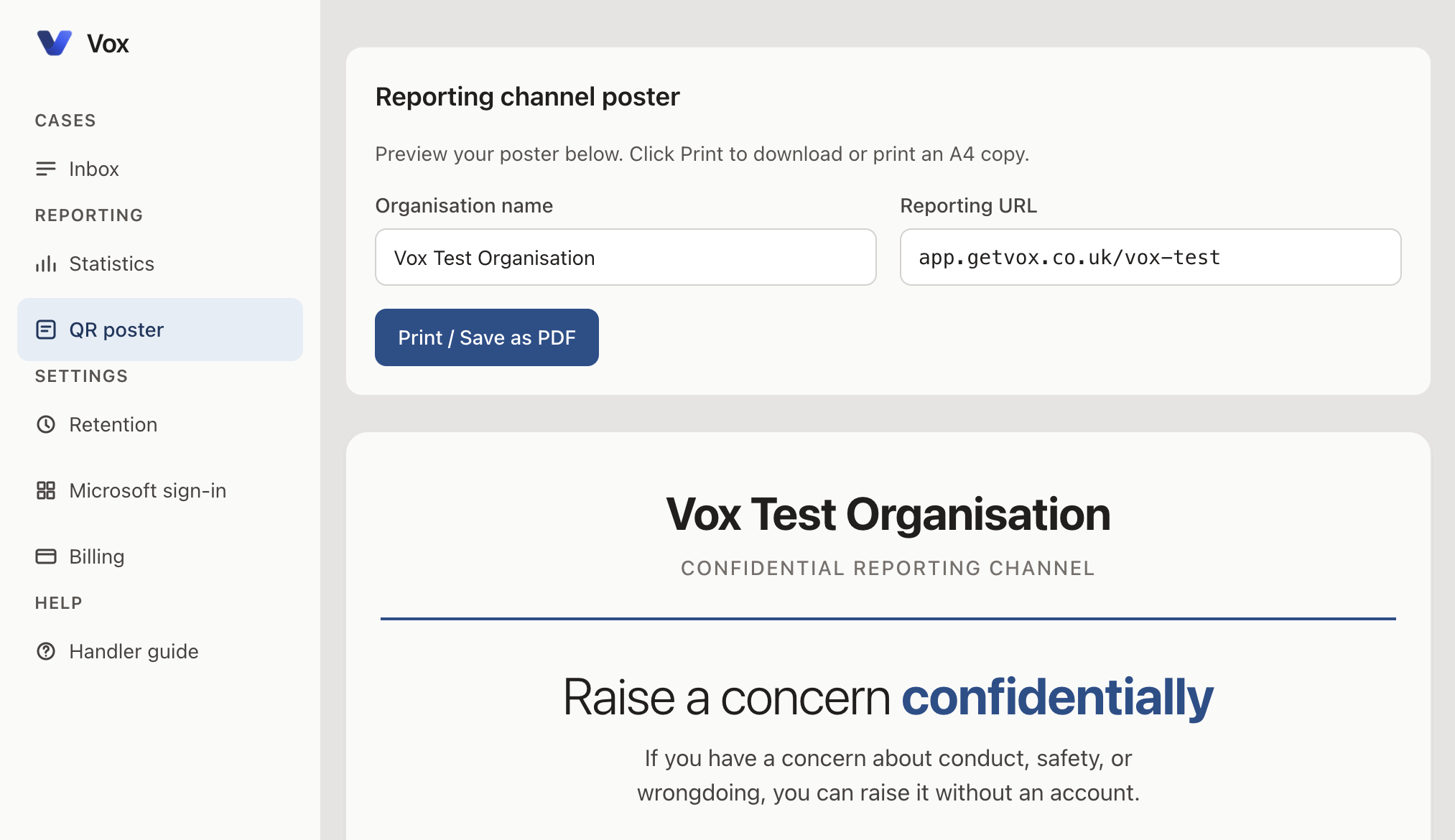
Use QR poster to produce material for noticeboards and handbooks.
- Set Organisation name as it should appear in print.
- Confirm Reporting URL (typically
app.getvox.co.uk/your-slug). The QR code updates to match. - Review the A4 preview.
- Select Print / Save as PDF.
12. Retention
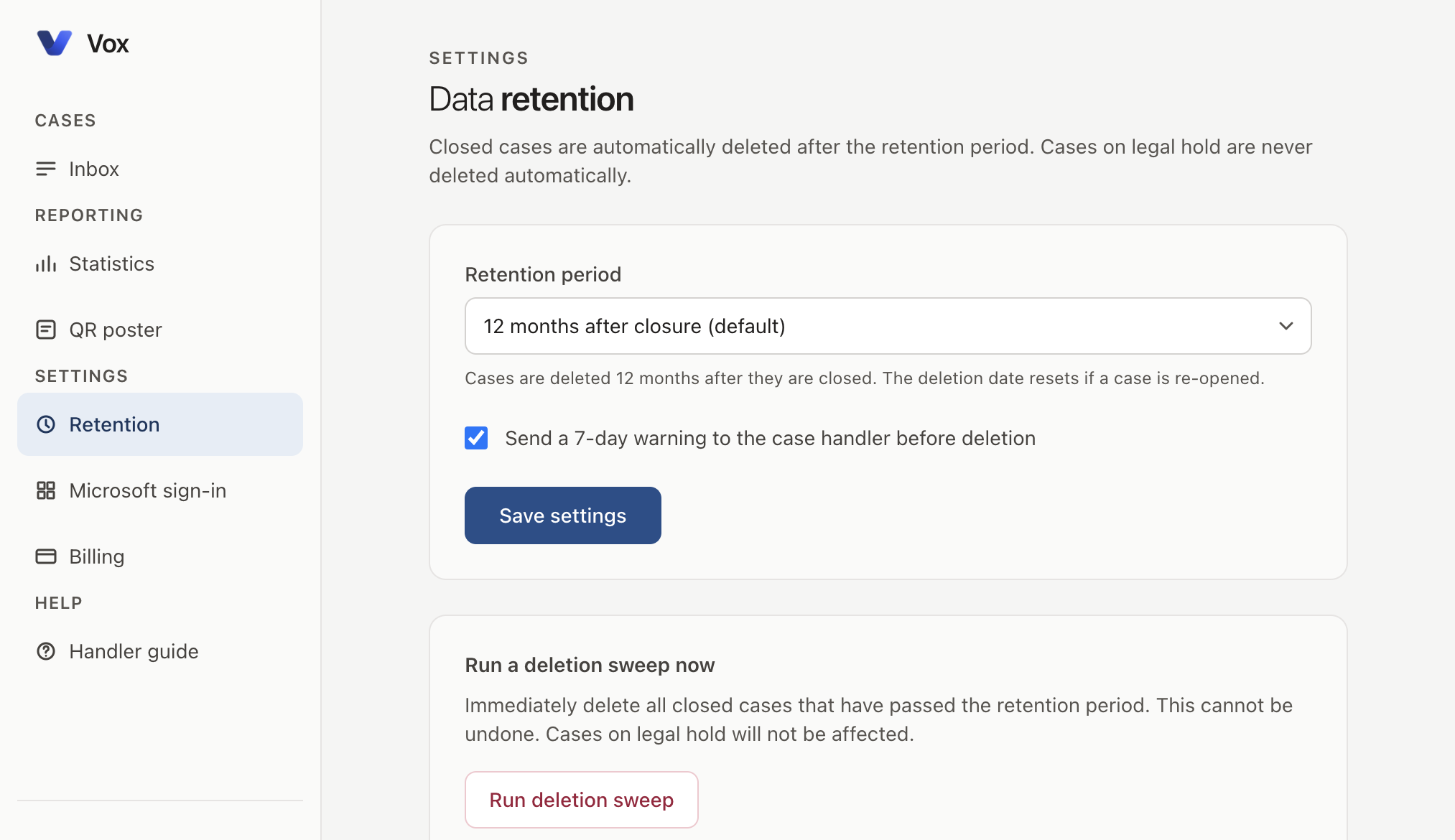
Administrators use Retention to set how long closed cases are kept before automatic deletion.
- Retention period
- From one month to seven years after closure. The default is 12 months.
- Send a 7-day warning…
- Notifies the handler before deletion when email is enabled.
- Save settings
- Applies the policy for the organisation.
- Run deletion sweep now
- Deletes closed cases that are past retention. Cases on legal hold are not deleted. This cannot be undone.
13. Microsoft sign-in
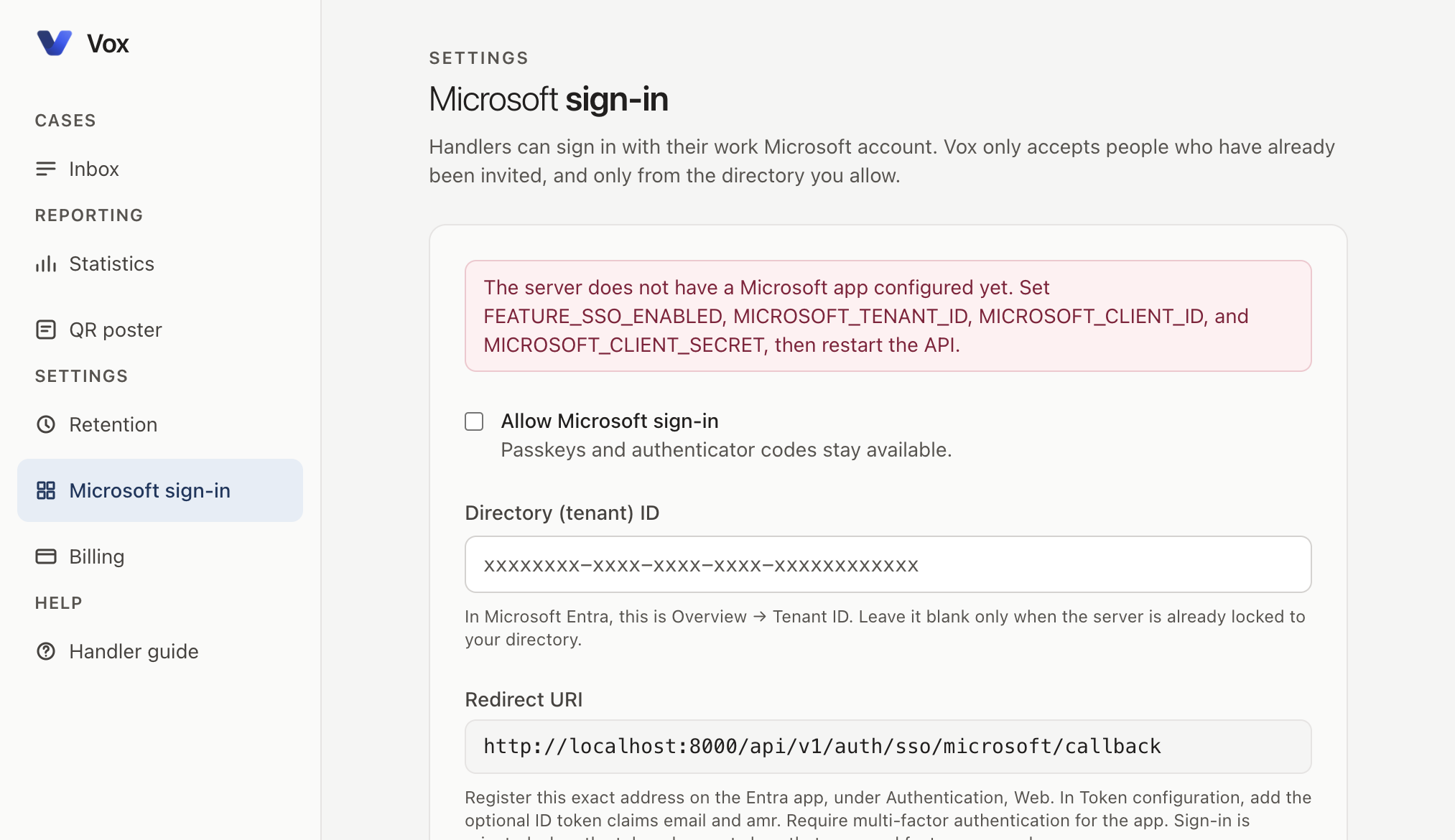
Administrators can allow invited handlers to sign in with Microsoft Entra.
- Allow Microsoft sign-in
- Passkeys and authenticator codes remain available either way.
- Directory (tenant) ID
- From Microsoft Entra Overview. Leave blank only if the server is already locked to your directory.
- Redirect URI
- Read-only. Register this exact address on the Entra app under Authentication, Web. Add the optional ID token claims
emailandamr, and require multi-factor authentication. - Save
- Applies organisation settings. The server must already have the Microsoft application configuration in place.
14. Billing
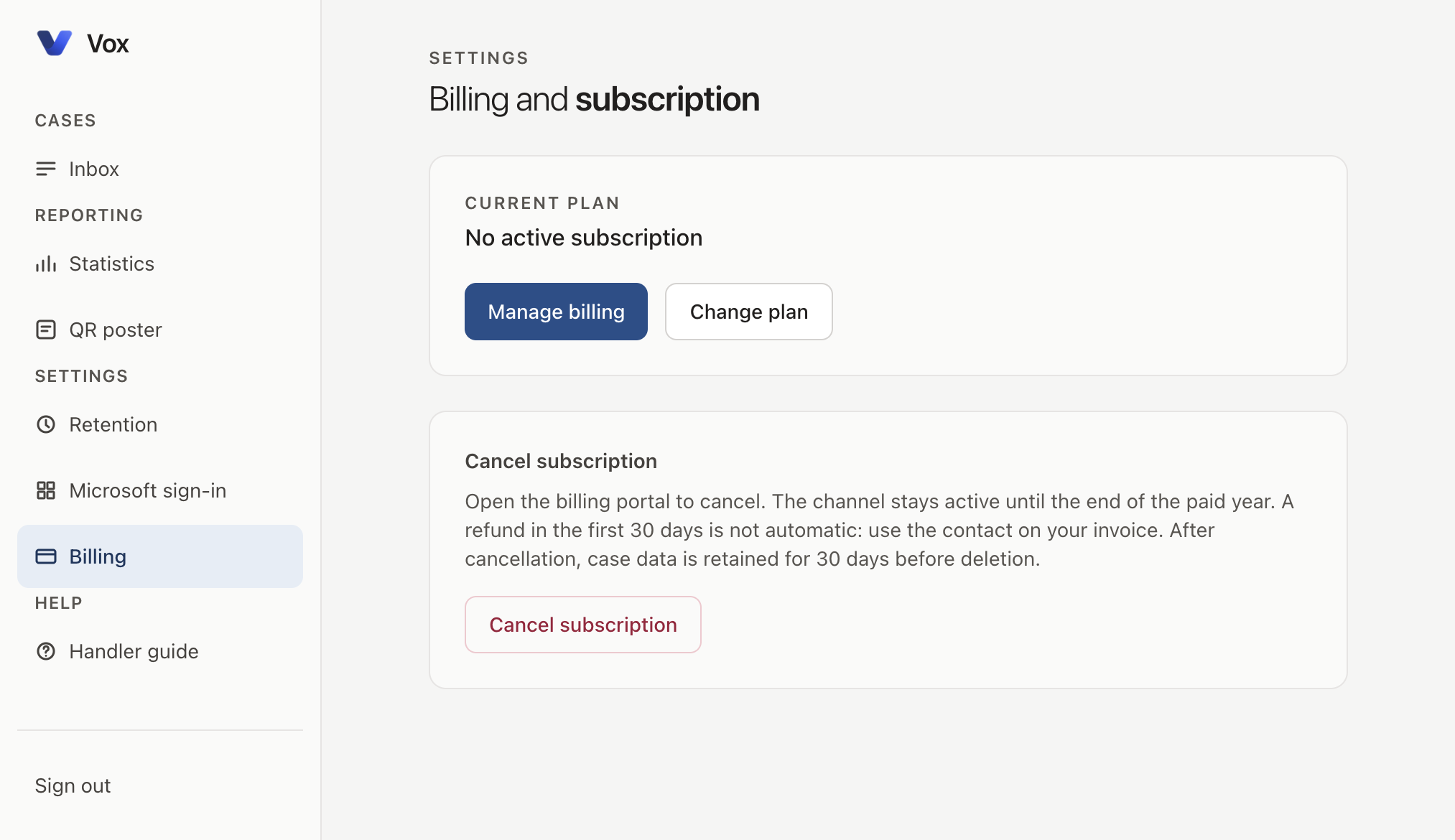
Billing shows the current subscription for the organisation.
- Manage billing
- Opens the Stripe customer portal for invoices and payment methods.
- Change plan
- Moves between published headcount bands where eligible.
- Cancel subscription
- Opens the portal to cancel. The channel remains active until the end of the paid year. Refunds in the first 30 days are handled through the invoice contact, not automatically. After cancellation, case data is retained for 30 days before deletion.
15. Troubleshooting
- Passkey cancelled or timed out
- Try again, or use the authenticator app.
- Invalid authenticator code
- Wait for the next code. Ensure the device clock is set automatically.
- Incorrect passphrase
- Use the passphrase created at key set-up, not your email password. Check Caps Lock and saved entries in a password manager.
- Could not decrypt report
- Unlock again and confirm you are an assigned handler. If every handler fails, the report may have been encrypted without your public key, for example after exclusion.
- Cases could not be loaded
- Select Try again. If the problem continues, check network access and sign in again.
- Export failed
- Sign in, unlock, open the case, and export again.
For product context beyond the staff portal, see the documentation overview or how encryption determines who can read a case.
Product documentation Encryption guide